

How to see your child’s work in the platform
This year, Pathways Middle College is using a Customized Learning Platform to administer the Gradient Learning program. The platform is built with Canvas, which is used around the world by prominent universities and K-12 institutions.
How To Create An “Observer” Account
To see your child’s work and progress, please create an “observer” account. We are using a customized instance of the Canvas platform, so it’s important that you do not go to the generic Canvas site. Please follow these instructions to set up your observer account in the platform:
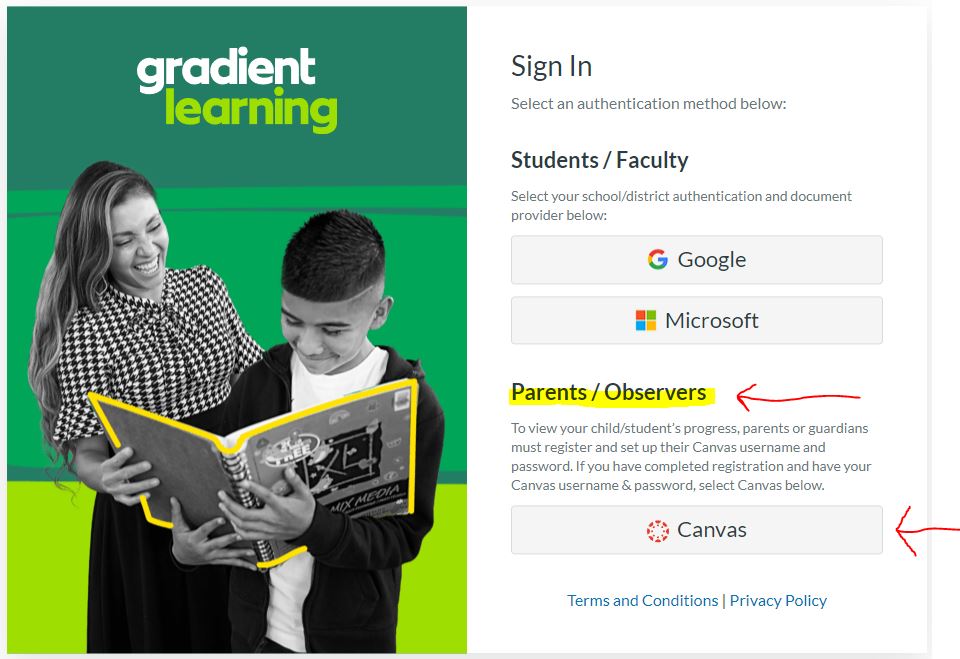
- Go to https://gradientlearning.instructure.com/
- Click on the button that says “Canvas” at the bottom under Parents/Observer.
- Click on “Need a Canvas account” in the top right
- Click on “Parents sign up here”
- Fill out the information under Parent Signup and towards the bottom add your unique Student Pairing Code —>
How To Log In Via the Canvas Parent App
Once your account is set up, parents and caregivers can also log in via your mobile device.

- Download the “Canvas Parent” app on your mobile device (Instructions for How to Download the Canvas Parent app on your Android or iOS device.)
Note: Please make sure you are downloading the Canvas Parent app with the blue logo. There are three Canvas mobile apps (Teacher, Student, Parent).
- Open the “Canvas Parent” app.
- Under “What’s your school’s name?” enter: Gradient Learning (see screenshot to the right)
- Enter Email address and Password associated with your Canvas account.
More than one student?
To link to multiple students as an observer, use a unique pairing code for each student. When creating an account, you can only enter one pairing code. You can enter additional pairing codes from your user account settings.
 pathwaysmiddlecollege.org